
Documentation Index
Fetch the complete documentation index at: https://docs.monk.com/llms.txt
Use this file to discover all available pages before exploring further.
Setting up Auto-Pay
Auto-pay automatically charges customers when their invoices are due using Stripe’s invoicing system. Stripe handles charging, retries (via Smart Retries), failure emails, and receipts — Monk handles invoice generation and status tracking.Two billing modes: Monk supports two ways to bill customers:
- Auto-charge via Stripe — Stripe charges the customer’s payment method automatically. Best for self-serve / PLG.
- Invoice & collect via Monk — Monk emails the invoice and manages collections. Best for enterprise / SLG.
Before You Start
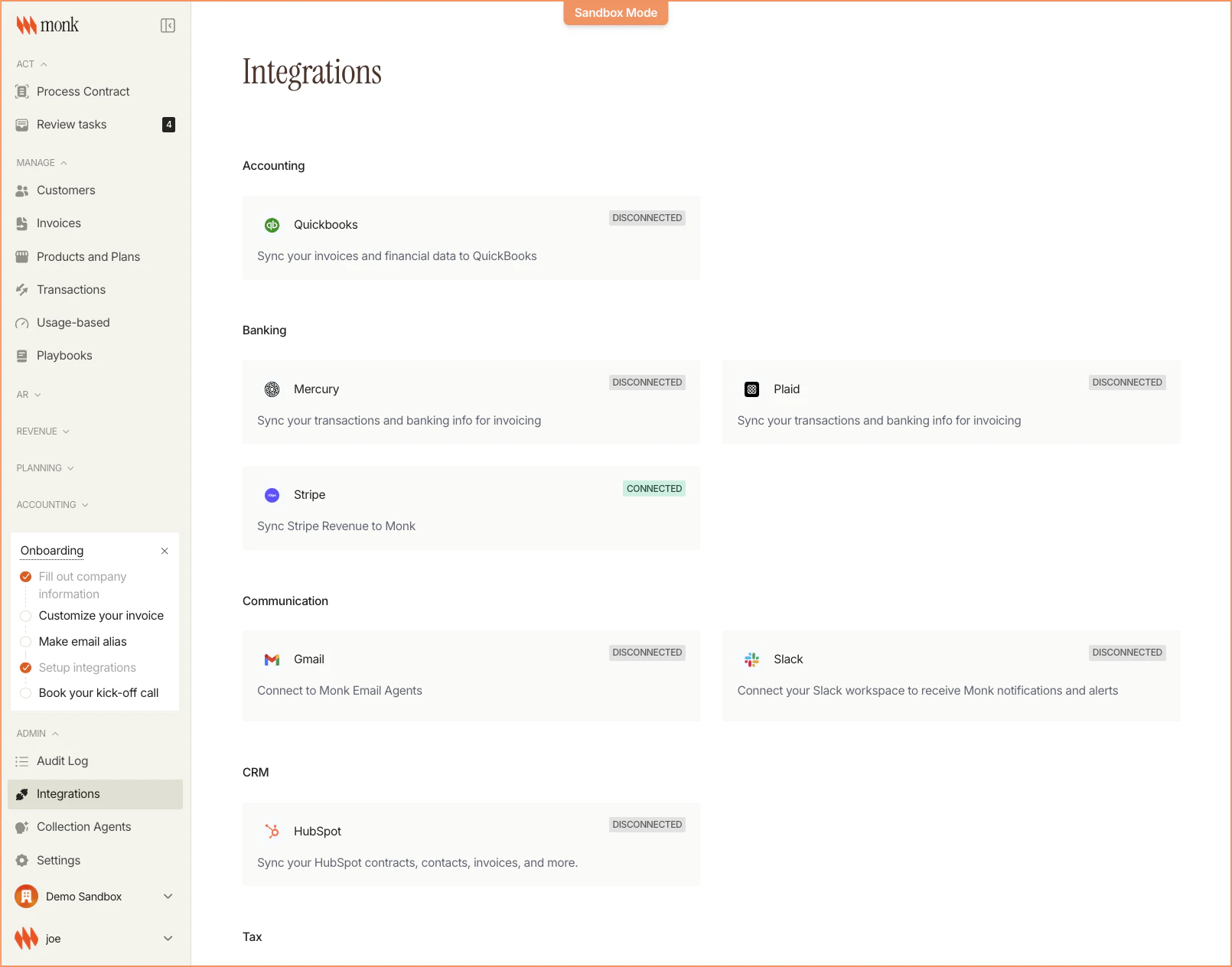
You’ll need:- A Monk account with Stripe connected
- A plan configured with Auto-charge via Stripe billing mode
- Customers with saved payment methods in Stripe
How Auto-Pay Works
What Stripe Handles
| Event | Stripe sends | Monk sends |
|---|---|---|
| Invoice finalized | Invoice notification | Nothing |
| Payment succeeds | Receipt email | Nothing |
| Payment fails | ”Payment failed” email | Nothing |
| Card expiring | Expiration warning | Nothing |
| All retries exhausted | Last failure email | Nothing (disables auto-pay internally) |
Payment Method Resolution
When charging, Monk looks for payment details in this order:- Contract-level: Payment method saved when customer paid via the payment portal
- Customer-level: Default payment method set via the API (
paymentMethodIdon the customer)
Step-by-Step: Enable Auto-Pay
1. Configure the Plan
Auto-pay starts at the plan level:- Navigate to Products → Plans
- Create a new plan
- Under Settings, select Auto-charge via Stripe as the billing mode
- Net terms are automatically set to “Due on receipt” (Net 0)
2. Create a Contract
When creating a contract on an auto-charge plan:- The billing mode is inherited from the plan
- Auto-pay is enabled automatically
- The contract drawer shows the current auto-pay status
3. Collect Payment Method
Customers need a saved payment method before auto-pay can charge them.Option A: API (Recommended for PLG)
Save a payment method on the customer via the Monk API:Option B: Payment Portal
When customers receive their first invoice:- They click the payment link in the invoice email
- They pay via Stripe Checkout
- They check “Save payment method for future invoices”
- Payment method is saved and linked to the contract
Option C: Stripe Dashboard
For manual setup:- Find the customer in Stripe Dashboard
- Go to Payment methods → Add a card or bank account
- Set it as the default payment method
Payment Retry (Smart Retries)
When a charge fails, Stripe’s Smart Retries automatically retries the payment at optimal times using machine learning.Configuration
Configure retry settings in your Stripe Dashboard under Settings → Billing → Reminders and retries:- Smart Retries: Up to 8 retries within 2 weeks (recommended)
- Invoice reminders: Send reminders for unpaid invoices
- Failed payment emails: Notify customers when charges fail
Retry Lifecycle
What Monk Tracks
During retries, Monk records the Stripe retry status on the invoice metadata:- Retrying: Next retry date, attempt count
- Exhausted: All retries failed, auto-pay disabled
- Paid: Retry succeeded
Stripe Emails
When using auto-charge via Stripe, Stripe handles all customer-facing emails. Monk does not send any emails for this billing mode. Enable these in your Stripe Dashboard under Settings → Billing → Emails:| Setting | |
|---|---|
| Payment receipts | Settings → Business → Customer emails |
| Failed payment notifications | Settings → Billing → “Send emails when card payments fail” |
| Card expiration warnings | Settings → Billing → “Send emails about expiring cards” |
Monitoring Auto-Pay
Invoice Status Flow
Successful Charge
When auto-pay succeeds:- Invoice status changes to Paid (via
invoice.paidwebhook) - Stripe sends payment receipt to customer
- Payment allocation recorded in Monk
Failed Charge
When all retries are exhausted:- Invoice remains in In Progress status
- Auto-pay is disabled on the contract
- Collections escalation triggered (if configured)
- Customer can still pay manually via the Stripe hosted invoice page
Troubleshooting
”Invoice wasn’t charged automatically”
- Check billing mode: Is the plan set to “Auto-charge via Stripe”?
- Verify payment method: Does the customer have a saved payment method?
- Check Stripe connection: Is your Stripe account connected?
- Review invoice date: Auto-pay runs daily at 6 AM EST for invoices due today
”Customer was charged but invoice still shows unpaid”
- Check Stripe for the invoice status
- Webhooks may be delayed — wait a few minutes
- Verify the Stripe webhook endpoint is receiving events
”Stripe retry emails not being sent”
Check Stripe Dashboard → Settings → Billing → Emails. Ensure “Send emails when card payments fail” is enabled.FAQ
Can I use auto-pay with Net 30 terms?
No. Auto-charge via Stripe requires Net 0 (due on receipt). For Net 30+ terms, use “Invoice & collect via Monk” and manage collections manually or via Monk’s collections playbooks.What if a customer doesn’t have a payment method?
The invoice will be finalized but won’t be charged. It remains in “In Progress” status. Add a payment method to the customer and the next invoice will be charged automatically.Is there a retry limit?
Stripe Smart Retries attempts up to 8 retries within 2 weeks by default. You can customize this in Stripe Dashboard → Settings → Billing → Retries.Can customers pay manually during retries?
Yes. The Stripe hosted invoice page allows customers to pay at any time, even during the retry window.What happens to existing plans?
Existing plans withsendMethod='email' continue to work as before. The billing mode change only affects newly created plans and contracts.
Next Steps
PLG vs SLG Workflows
Compare self-serve and enterprise billing approaches
Stripe Smart Retries
Stripe documentation on automatic payment retries
Billing Overview
Complete guide to SaaS billing with Monk
Save Payment Methods
Stripe documentation on saving payment methods