
Documentation Index
Fetch the complete documentation index at: https://docs.monk.com/llms.txt
Use this file to discover all available pages before exploring further.
Send your first Event
This guide walks you through sending your first usage event to Monk.What are events? Events record customer usage that gets aggregated by
meters and charged on invoices. Learn more about events →
Prerequisites
- A Monk API key
- A meter created
- A customer with an active contract
Steps
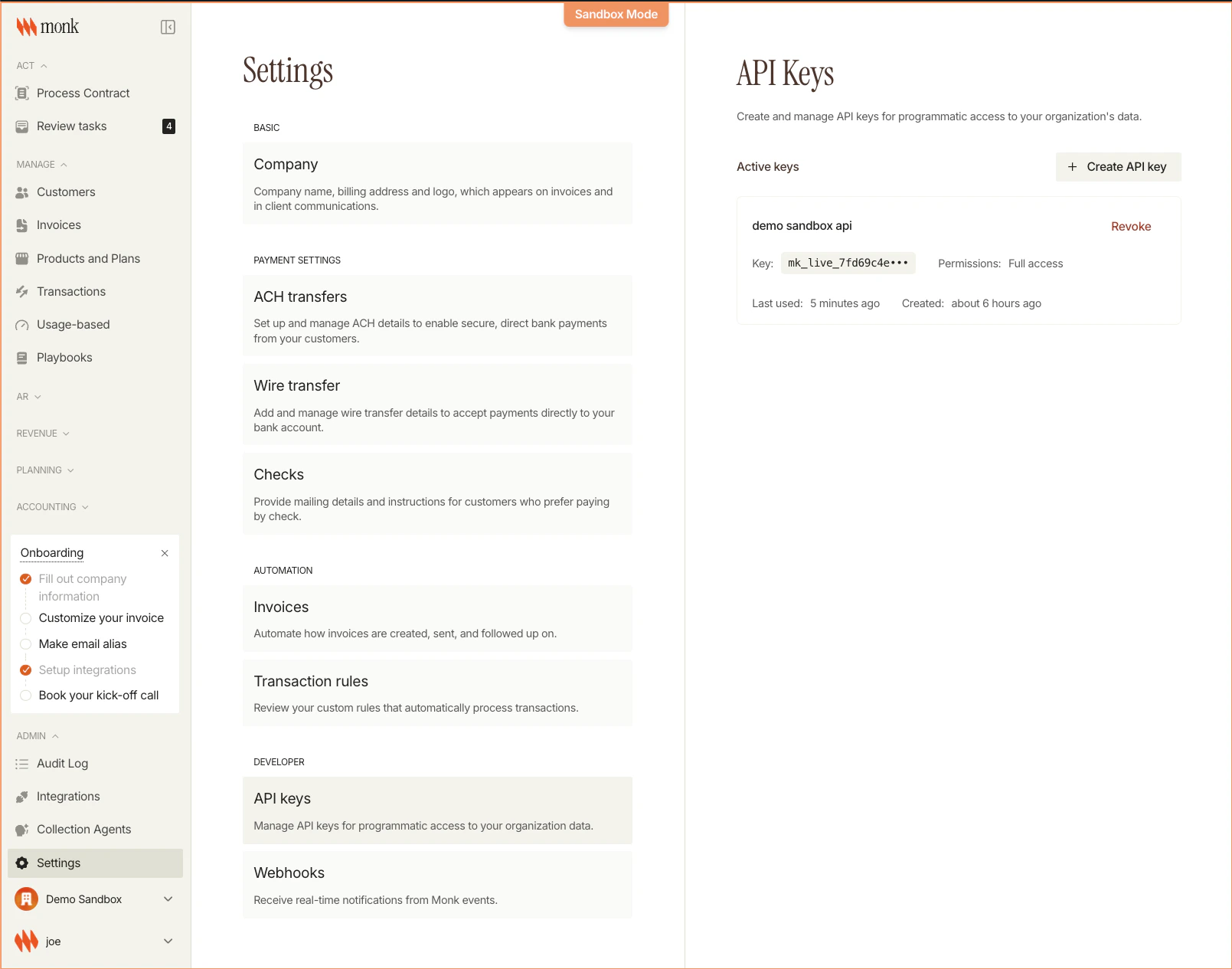
1. Get Your API Key
- Navigate to Settings → API Keys in the Monk dashboard
- Copy your API key (looks like
mk_live_...)
2. Find Your Customer ID
You can use either:- Monk’s Customer ID: UUID from the dashboard or API response
- Your External ID: The
externalCustomerIdyou set when creating the customer
3. Send the Event
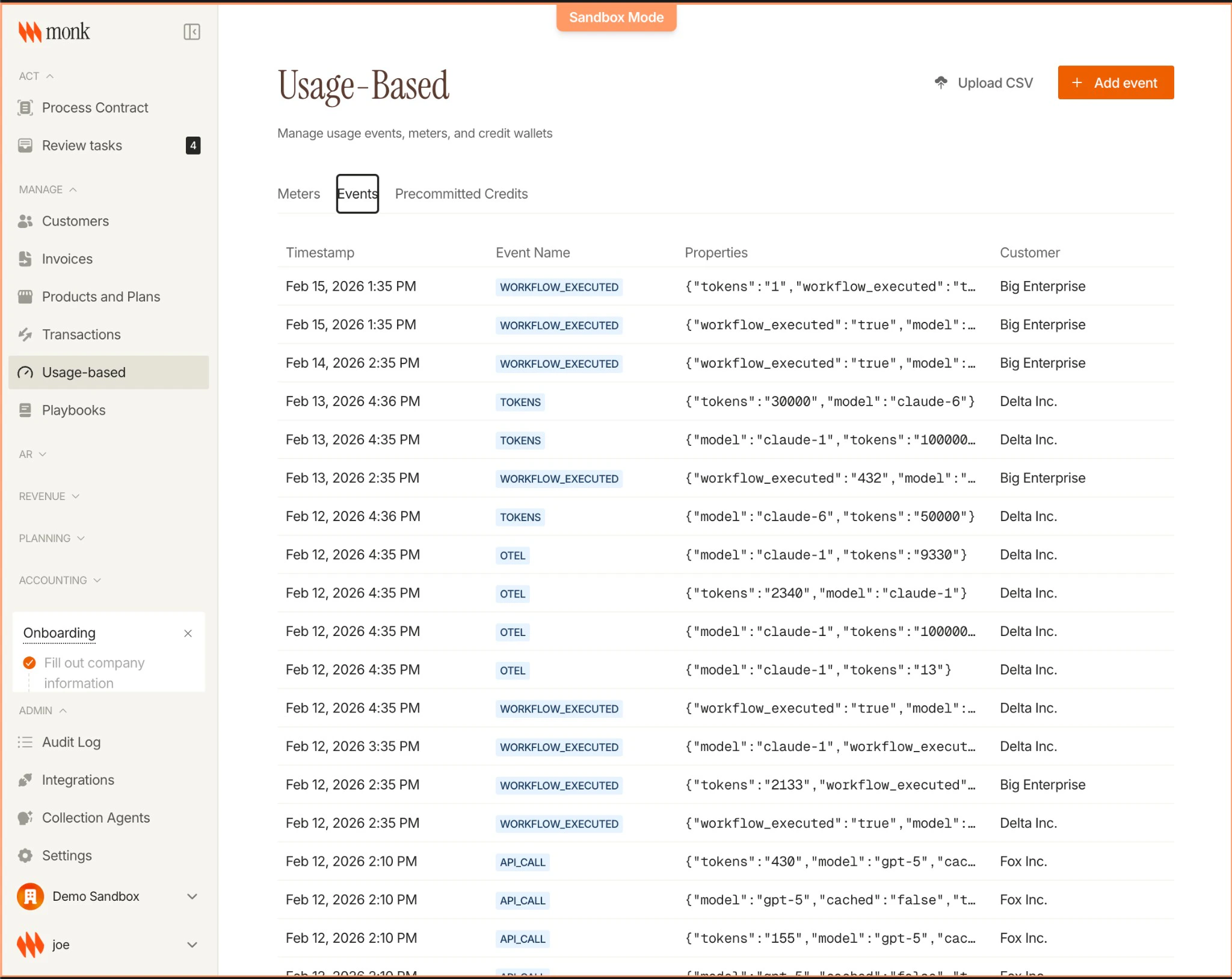
4. Verify
Check your event in the dashboard:- Navigate to Usage-based → Events
- Find your event in the list
Using External Customer IDs
If you prefer your own identifiers:Sending Multiple Events
For bulk imports or high throughput, use the batch endpoint:Troubleshooting
”Customer not found”
- Verify the
customerIdorexternalCustomerIdis correct - Check the customer exists in the Monk dashboard
”timestamp must not be more than 1 hour in the future”
- The event’s
timestampis too far ahead of the server’s current time - Check for clock skew on the machine sending events
- If
timestampis omitted, it defaults to now — this error only applies to explicitly set timestamps
”Event not appearing on invoice”
- Customer needs an active contract
- The contract’s plan must include a meter matching the
eventName - Event timestamp must fall within the invoice’s billing period
Next Steps
Events Concepts
Learn about idempotency, infrastructure, and best practices
Events API
Full API specification
Batch Events
Send multiple events at once