
Documentation Index
Fetch the complete documentation index at: https://docs.monk.com/llms.txt
Use this file to discover all available pages before exploring further.
Billing for AI Products
This guide walks you through setting up billing for an AI product where rates vary by attributes like region, model, or outcome. We’ll build a complete billing system for an AI call center with dimensional pricing.What We’ll Build
By the end of this guide, you’ll have:- Meters with dimensions to track AI calls by region and outcome
- Rate cards with different prices per dimension combination
- Plans with dimensional usage pricing
- Contracts that generate invoices with dimensional breakdowns
- Usage tracking with dimension properties
- Invoices showing per-dimension line items
This guide assumes familiarity with Monk basics. If you’re new to Monk, start
with the SaaS Billing Guide first.
Example Scenario
You’re building an AI-powered call center platform. Your pricing varies by:| Dimension | Values |
|---|---|
| Region | US, EU, APAC |
| Call Outcome | resolved, transferred, escalated |
| Region | Outcome | Rate/Minute |
|---|---|---|
| US | resolved | $0.20 |
| US | transferred | $0.40 |
| US | escalated | $0.60 |
| EU | resolved | $0.25 |
| EU | transferred | $0.50 |
| EU | escalated | $0.75 |
| APAC | resolved | $3.00 |
| APAC | transferred | $0.60 |
| APAC | escalated | $0.90 |
| — | — | $0.40 (fallback) |
Step 1: Create a Dimensional Meter
First, create a meter that tracks AI calls and groups usage by dimension keys.Navigate to Meters
- Open your Monk dashboard
- Go to Usage-based → Meters
- Click Create Meter
Configure the Meter
| Field | Value |
|---|---|
| Code | AI_CALL |
| Display Name | AI Calls |
| Event Name | ai_call |
| Aggregation | Sum |
| Aggregation Key | duration_minutes |
| Group Keys | region, call_outcome |
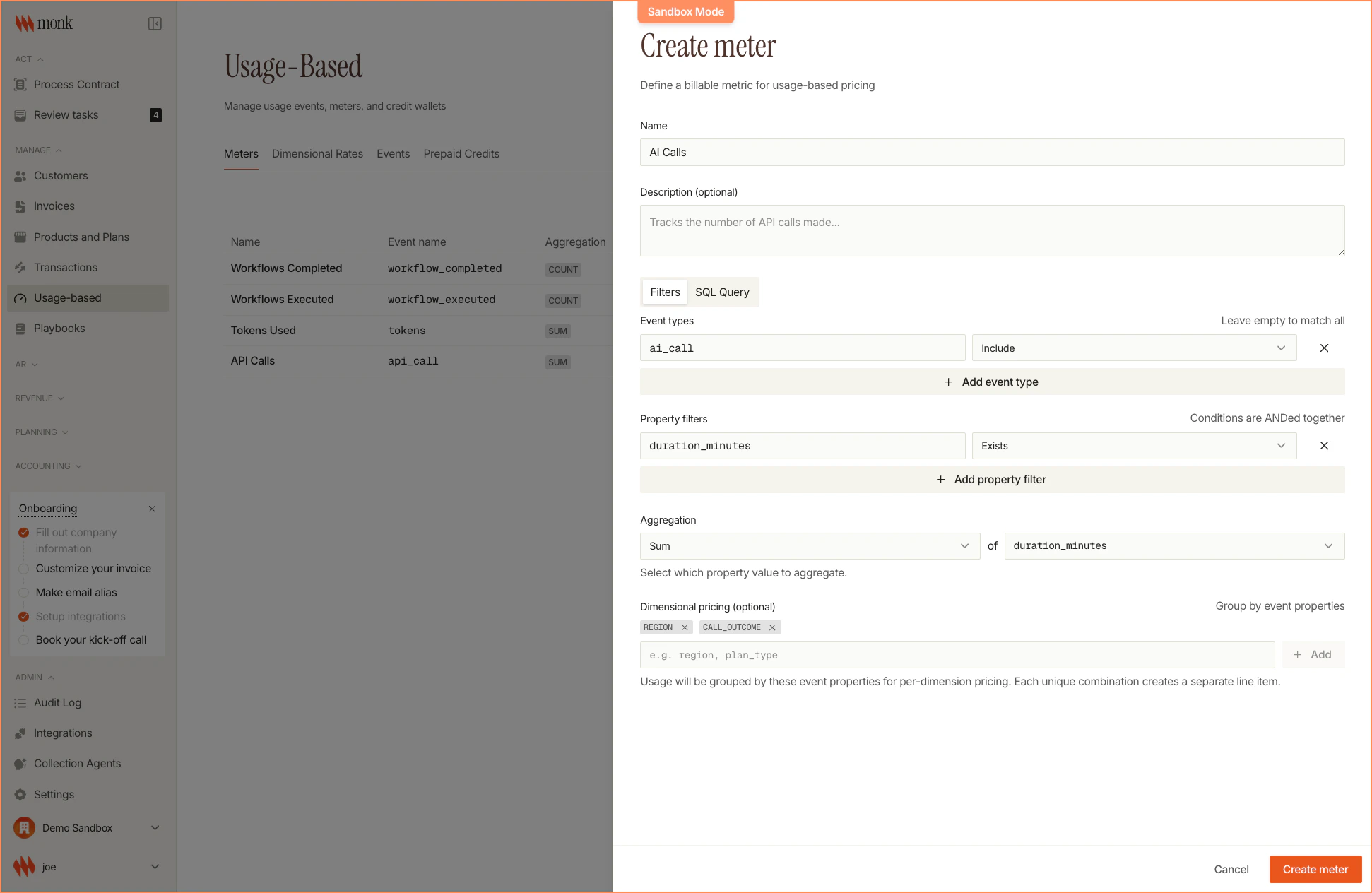
Group Keys are the event properties Monk uses to break down usage for
dimensional pricing. They must match your event property names exactly.
Step 2: Create a Rate Card
Rate cards define prices for specific dimension combinations.Navigate to Dimensional Rates
- Go to Usage-based → Dimensional Rates
- Click Create dimensional rate
- Select AI Calls as the meter
Add Rate Entries
Add each dimension combination and its rate: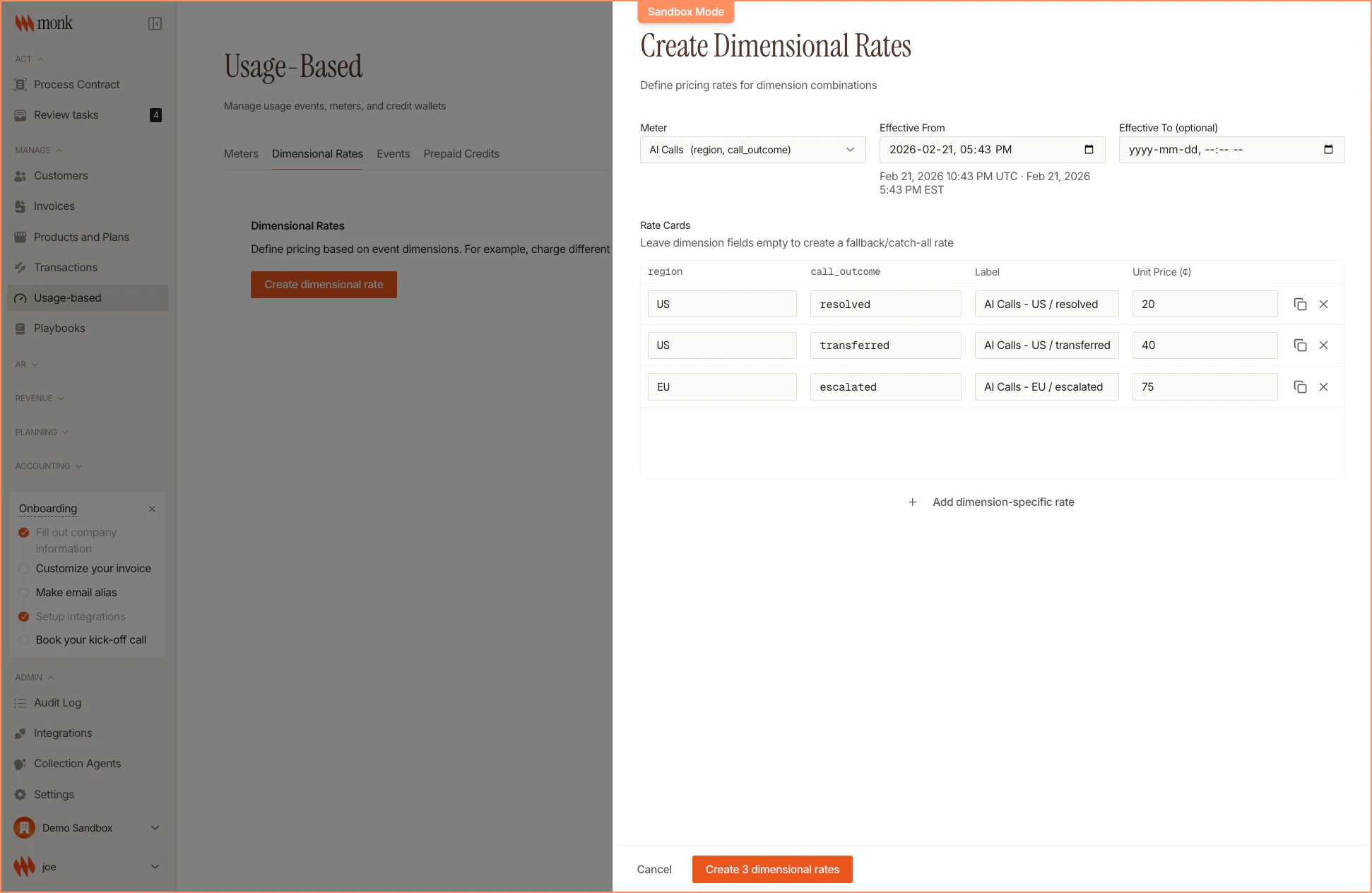
| Region | Outcome | Rate/Min |
|---|---|---|
| US | resolved | $0.20 |
| US | transferred | $0.40 |
| US | escalated | $0.60 |
| EU | resolved | $0.25 |
| EU | transferred | $0.50 |
| EU | escalated | $0.75 |
| APAC | resolved | $0.30 |
| APAC | transferred | $0.60 |
| APAC | escalated | $0.90 |
Step 3: Create Pricing with the Rate Card
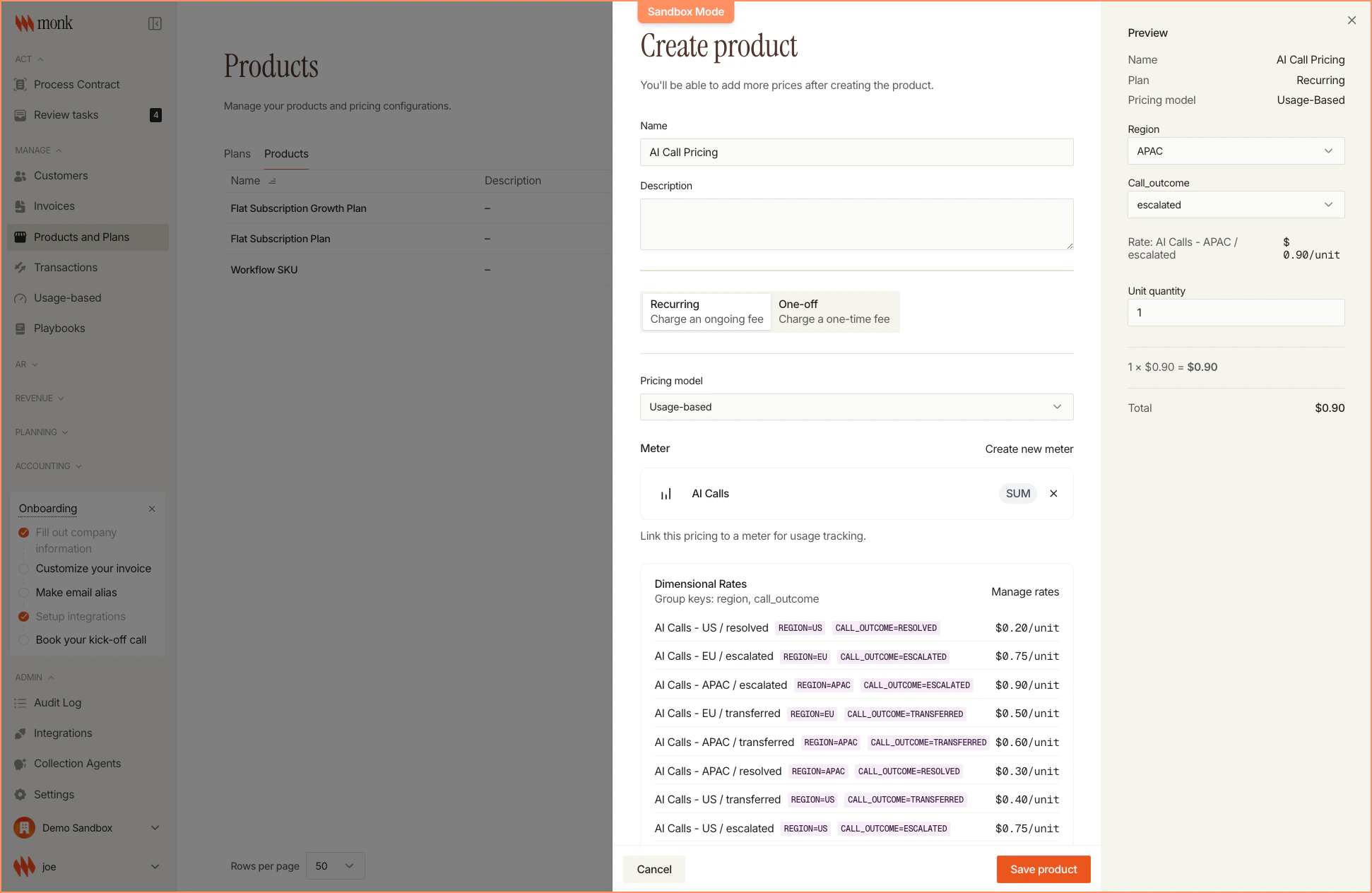
Now create a pricing configuration that uses your rate card.Navigate to Pricing
- Go to Products and Plans
- Click Create Product (or edit an existing product)
- Add a Usage-based pricing
Configure Pricing
| Field | Value |
|---|---|
| Name | AI Call Pricing |
| Meter | AI Calls |
| Pricing Model | Per Unit |
| Fallback Rate | $0.40 |
| Rate Card | (your rate card) |
Step 4: Create a Plan
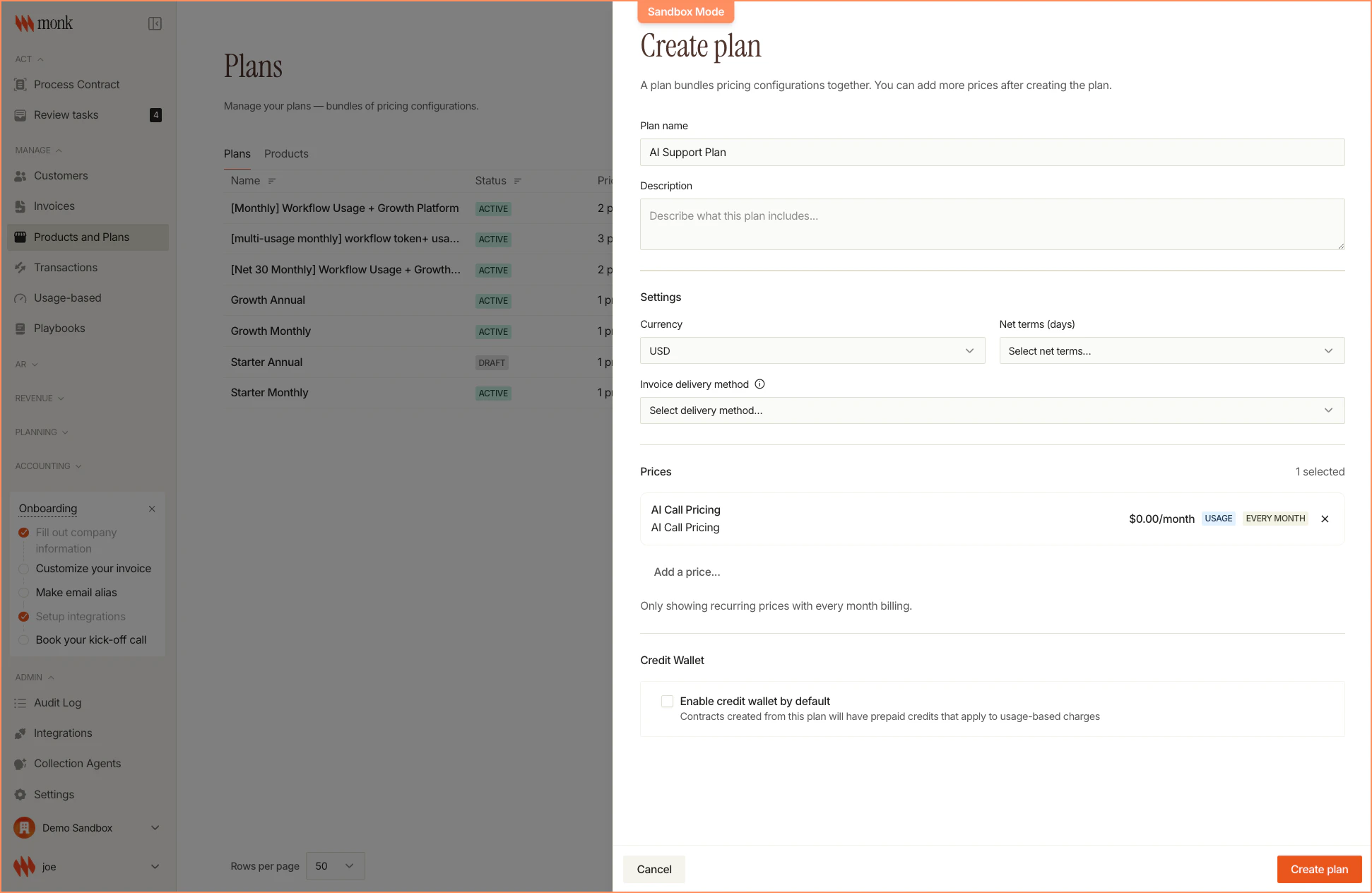
Bundle the pricing into a plan.Navigate to Plans
- Go to Products and Plans
- Click Create Plan
Configure the Plan
| Field | Value |
|---|---|
| Name | AI Call Center |
| Currency | USD |
| Net Terms | Due on receipt |
| Auto-pay | Enabled |
Add Pricing Items
- Click Add Pricing Item
- Select Usage-Based
- Choose AI Call Pricing
Step 5: Create a Contract via Contract Extraction
Monk’s contract extraction flow lets you upload a customer agreement (PDF or image) and automatically extract commercial terms. This is common for sales-led growth (SLG) motions where customers negotiate custom terms.Upload the Contract
- Go to Process Contract
- Upload your customer’s signed agreement
- Monk extracts customer info, contract dates, payment terms, and pricing
Review Commercial Terms
After extraction, you’ll see the Commercial Terms page: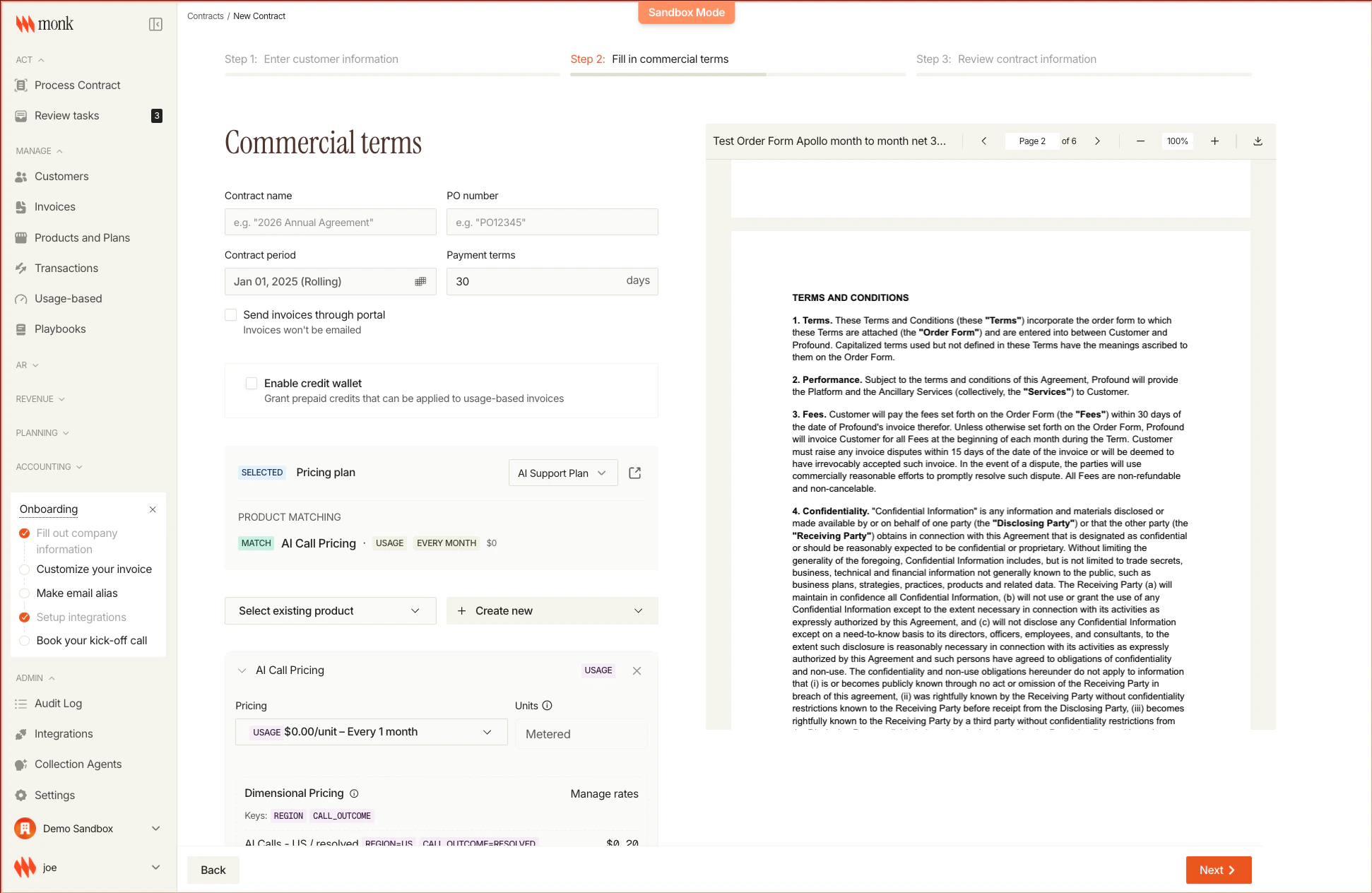
| Field | Example Value |
|---|---|
| Contract period | Nov 01, 2024 - Oct 31, 2026 |
| Payment terms | 45 days |
| Pricing plan | AI Support Plan |
Prepaid Credits for AI Usage
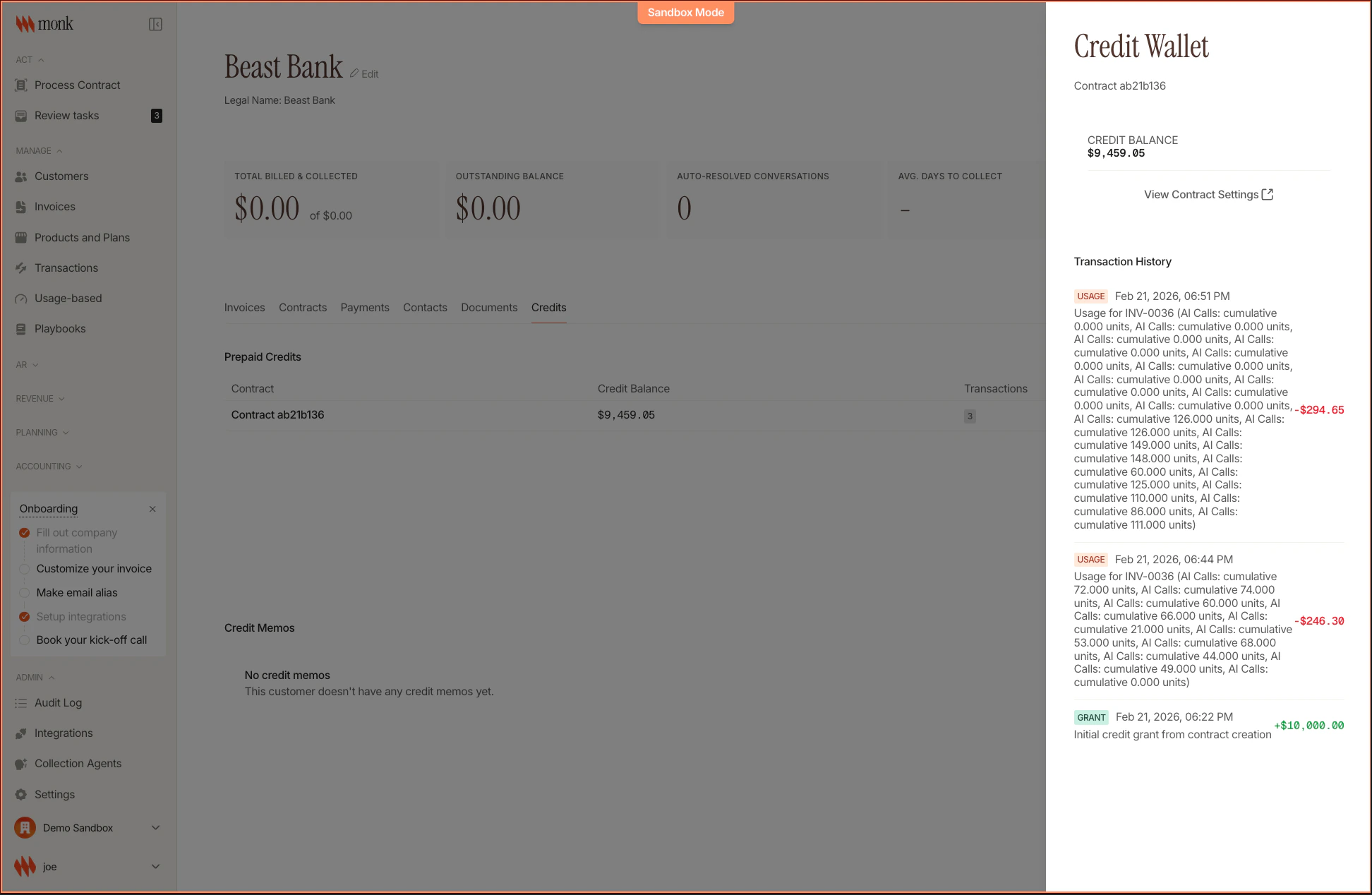
A common SLG pattern for AI products is offering prepaid credits that customers draw down as they use your service. This gives customers cost predictability while you maintain usage-based pricing. In the example above:- Initial grant amount: $10,000
- Credit expiration date: Oct 31, 2026
Product Matching with Dimensional Pricing
The extraction flow matches products from your contract to your pricing catalog. Notice the AI Call Pricing is matched with all dimensional rates visible: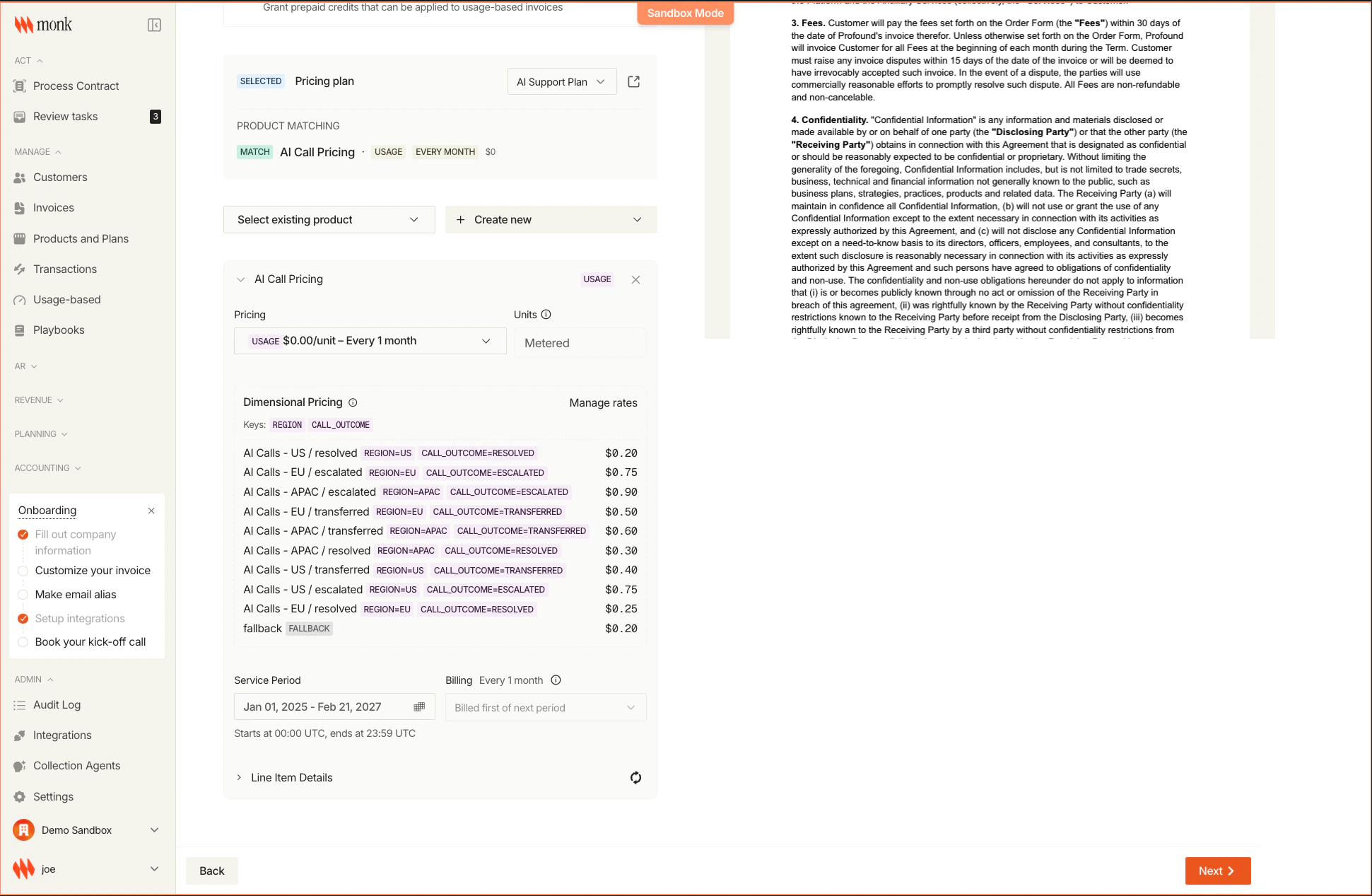
| Dimension | Rate |
|---|---|
| US / resolved | $0.20/min |
| US / transferred | $0.40/min |
| US / escalated | $0.75/min |
| EU / resolved | $0.25/min |
| EU / transferred | $0.50/min |
| EU / escalated | $0.75/min |
| APAC / resolved | $0.30/min |
| APAC / transferred | $0.60/min |
| APAC / escalated | $0.90/min |
Confirm the Contract
- Review all extracted terms
- Click Next to proceed to Step 3 (Review contract information)
- Verify the final summary
- Click Confirm to create the contract
What Happens
When the contract is confirmed:- Customer is created (or matched to existing)
- Contract is activated with the extracted terms
- Prepaid credits are granted ($10,000 in this example)
- Invoices are pre-generated for each billing period
- Dimensional line items are ready to receive usage events
Step 6: Send Usage Events with Dimensions
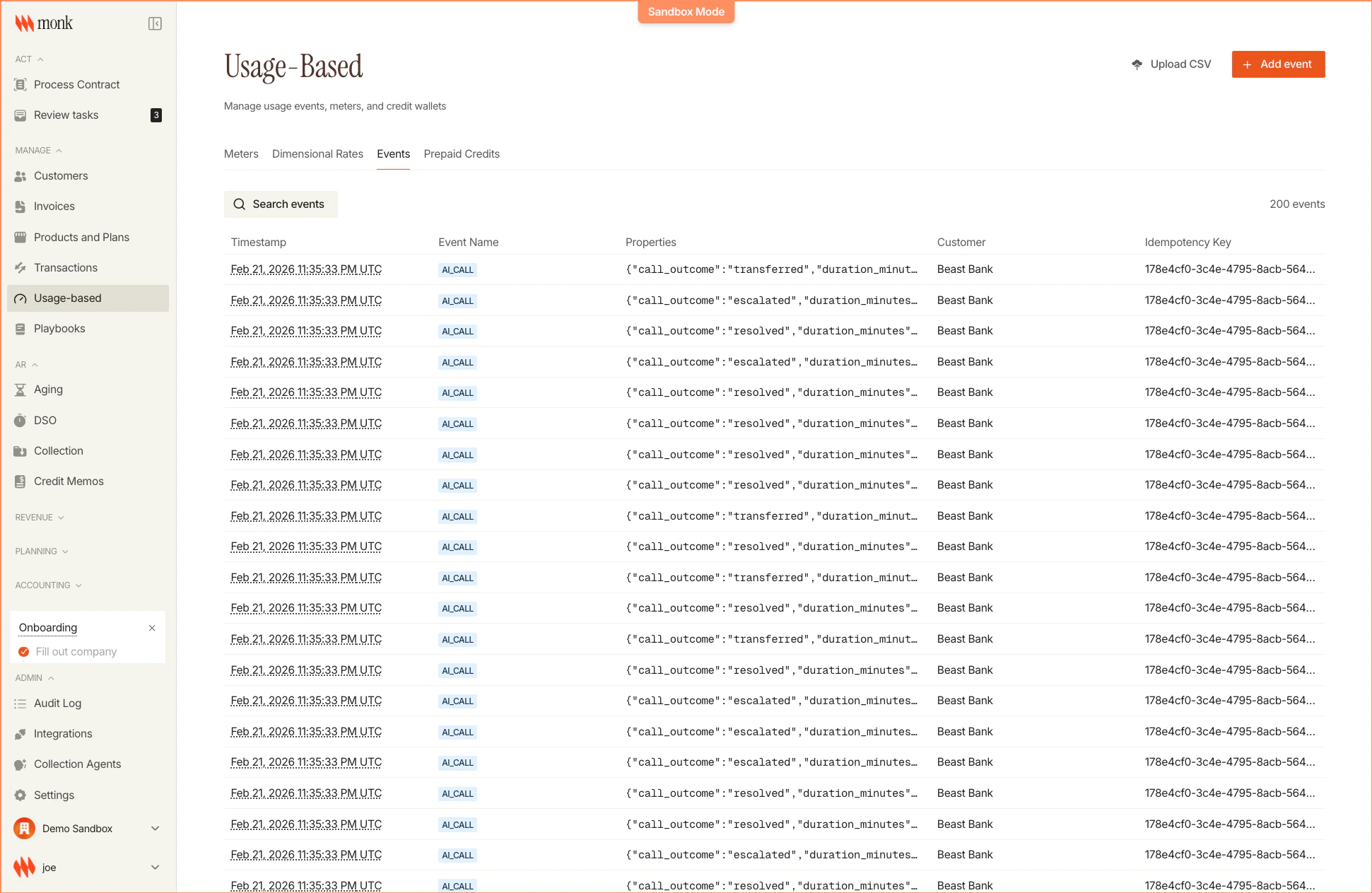
Now integrate your application to send usage events with dimension properties.Event Structure
Each event includes the dimension properties that determine which rate applies:Send Test Events
Let’s simulate a day of calls for Acme Support Co:Batch Events (High Volume)
For high-volume scenarios, batch events:Events are processed asynchronously. Usage typically appears on invoices
within a minute.
Step 7: View the Dimensional Breakdown
After sending events, check the invoice to see the dimensional breakdown.Navigate to the Invoice
- Go to Customers → Acme Support Co
- Click on the current billing period invoice
Invoice Line Items
Each dimension combination appears as a separate line item: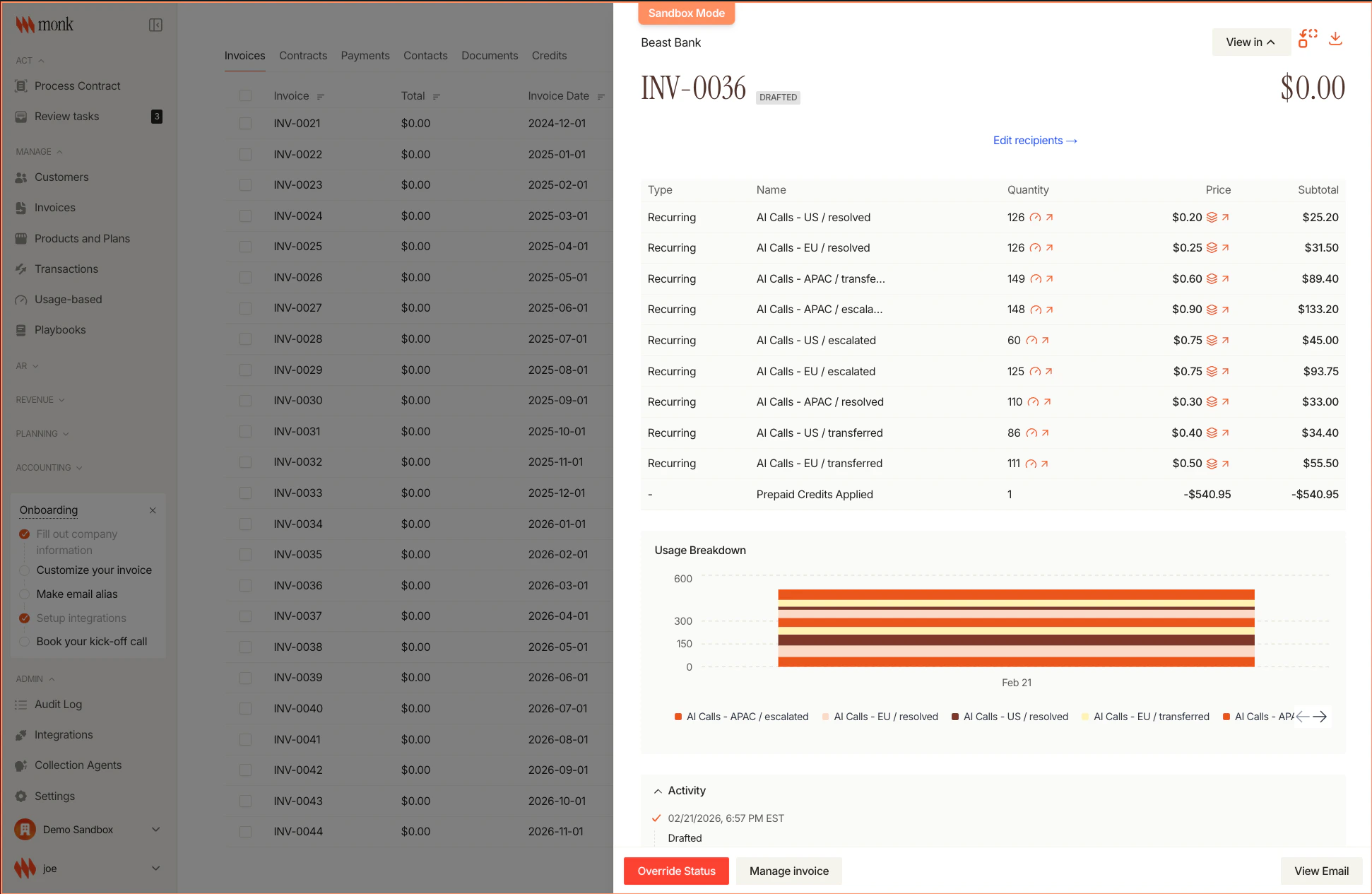
| Line Item | Minutes | Rate/Min | Amount |
|---|---|---|---|
| AI Calls - US / Resolved | 13 | $0.20 | $2.60 |
| AI Calls - US / Transferred | 12 | $0.40 | $4.80 |
| AI Calls - EU / Resolved | 6 | $0.25 | $1.50 |
| AI Calls - EU / Escalated | 15 | $0.75 | $11.25 |
| AI Calls - APAC / Resolved | 4 | $0.30 | $1.20 |
| Total | 50 | $21.35 |
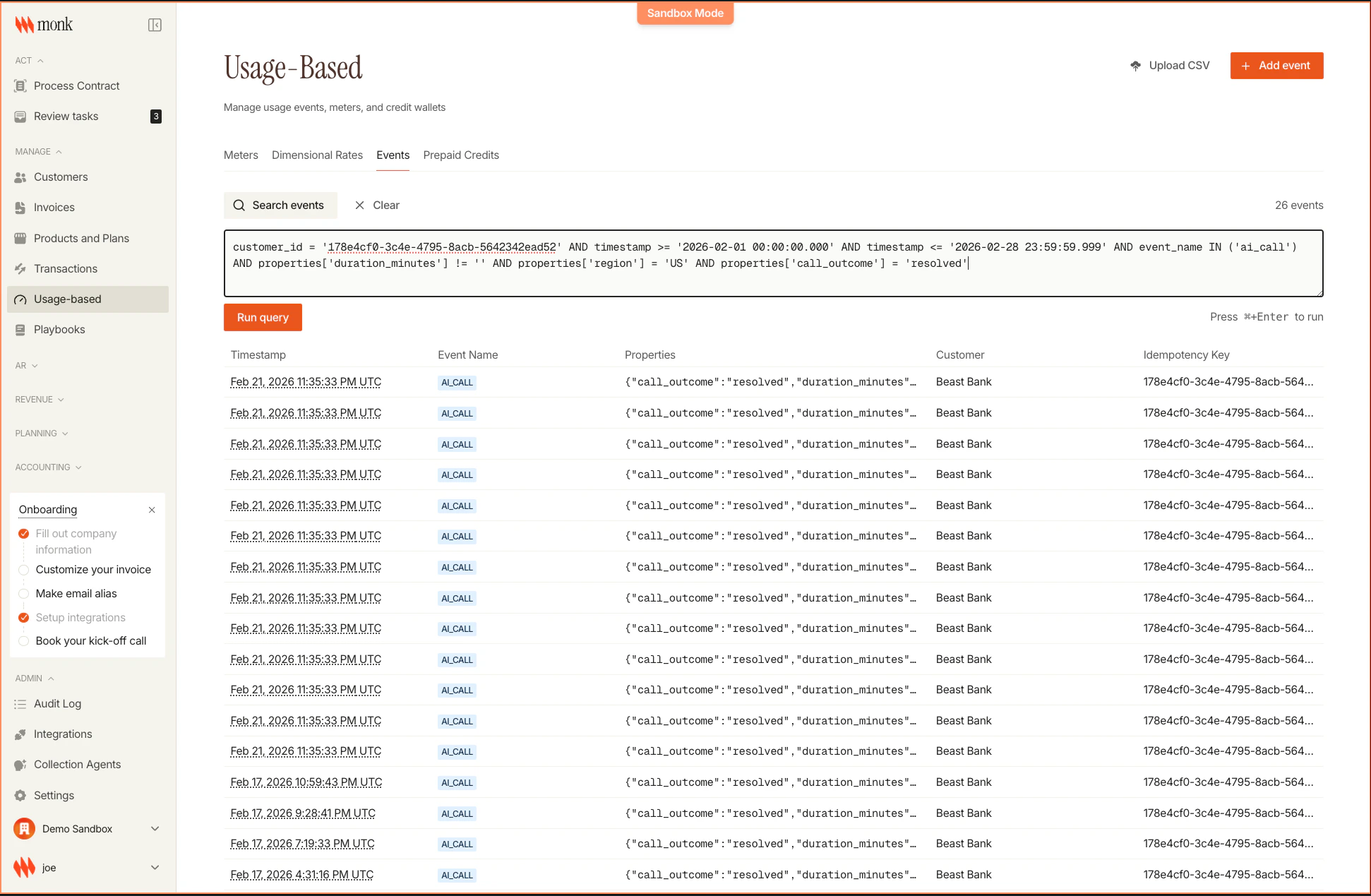
Viewing Events for a Dimension
Click on the quantity for any line item to view the underlying usage events filtered by that dimension: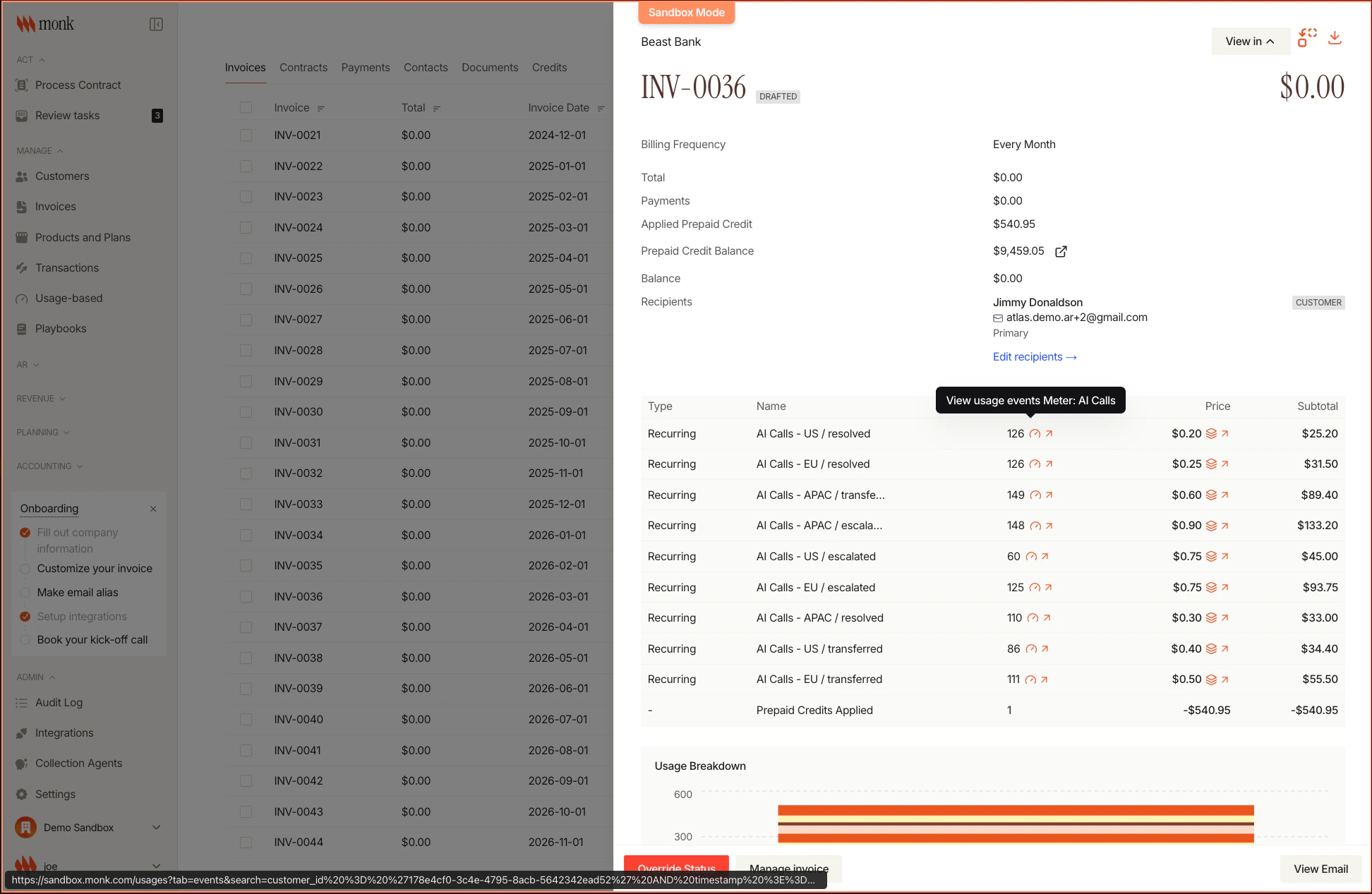
Invoice Total with Prepaid Credits
Notice the invoice shows $0.00 — this is because the usage charges are automatically deducted from the customer’s prepaid credit wallet. The “Prepaid Credits Applied” line item shows the credit deduction, and the remaining wallet balance is visible in the invoice details. Click View Email or PDF Preview to see the full invoice with dimensional breakdown that customers will receive: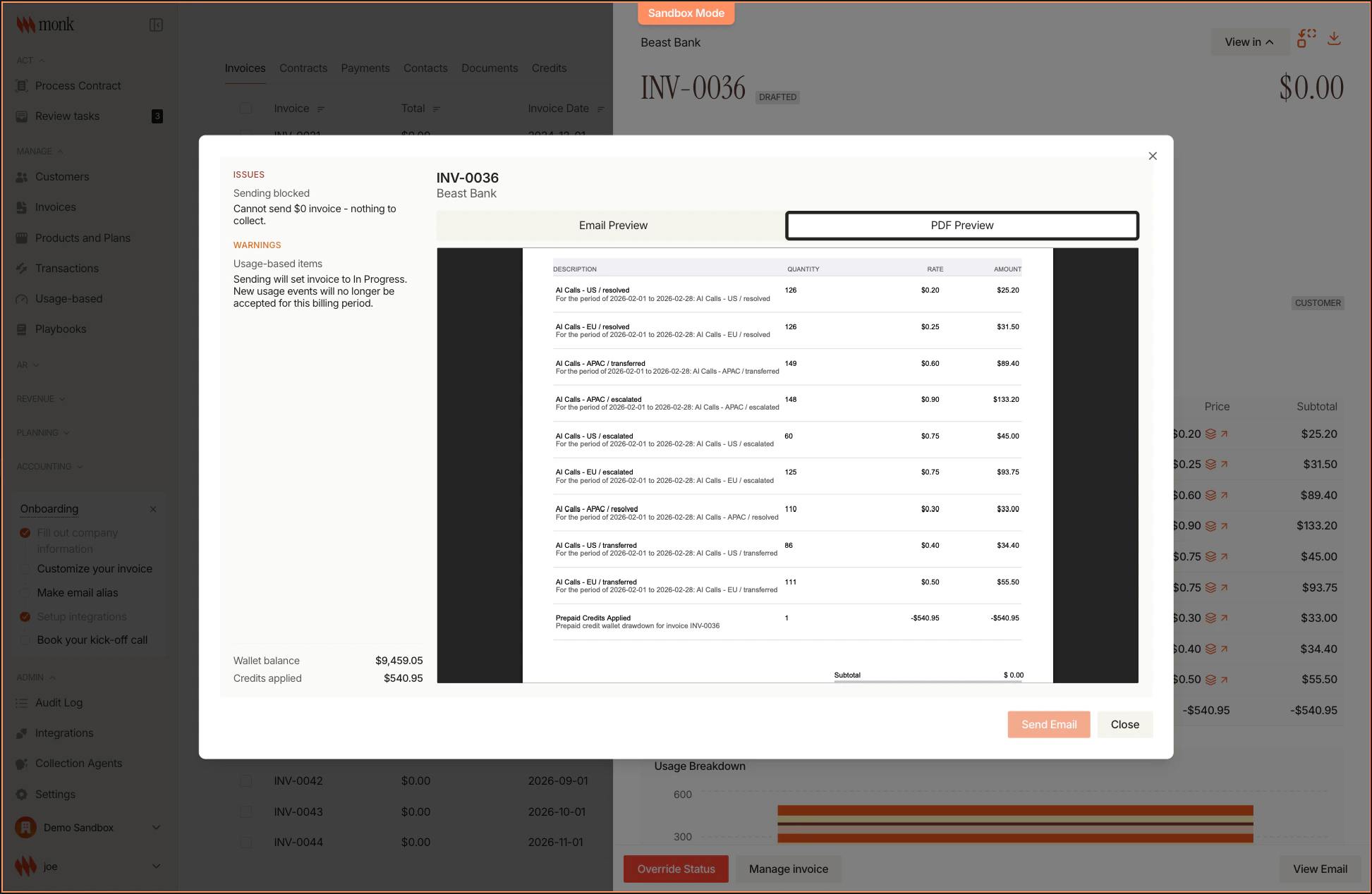
Fallback Strategy
When an event’s dimension values don’t match any rate card entry, Monk uses the fallback rate. You can see all your dimensional rates including the fallback in Usage-based → Dimensional Rates: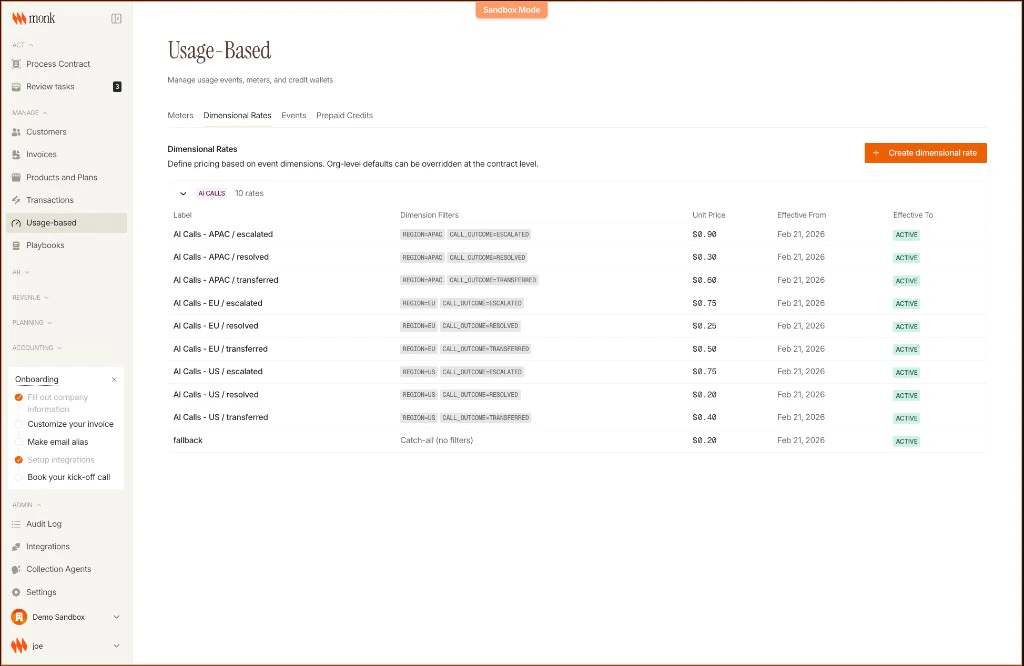
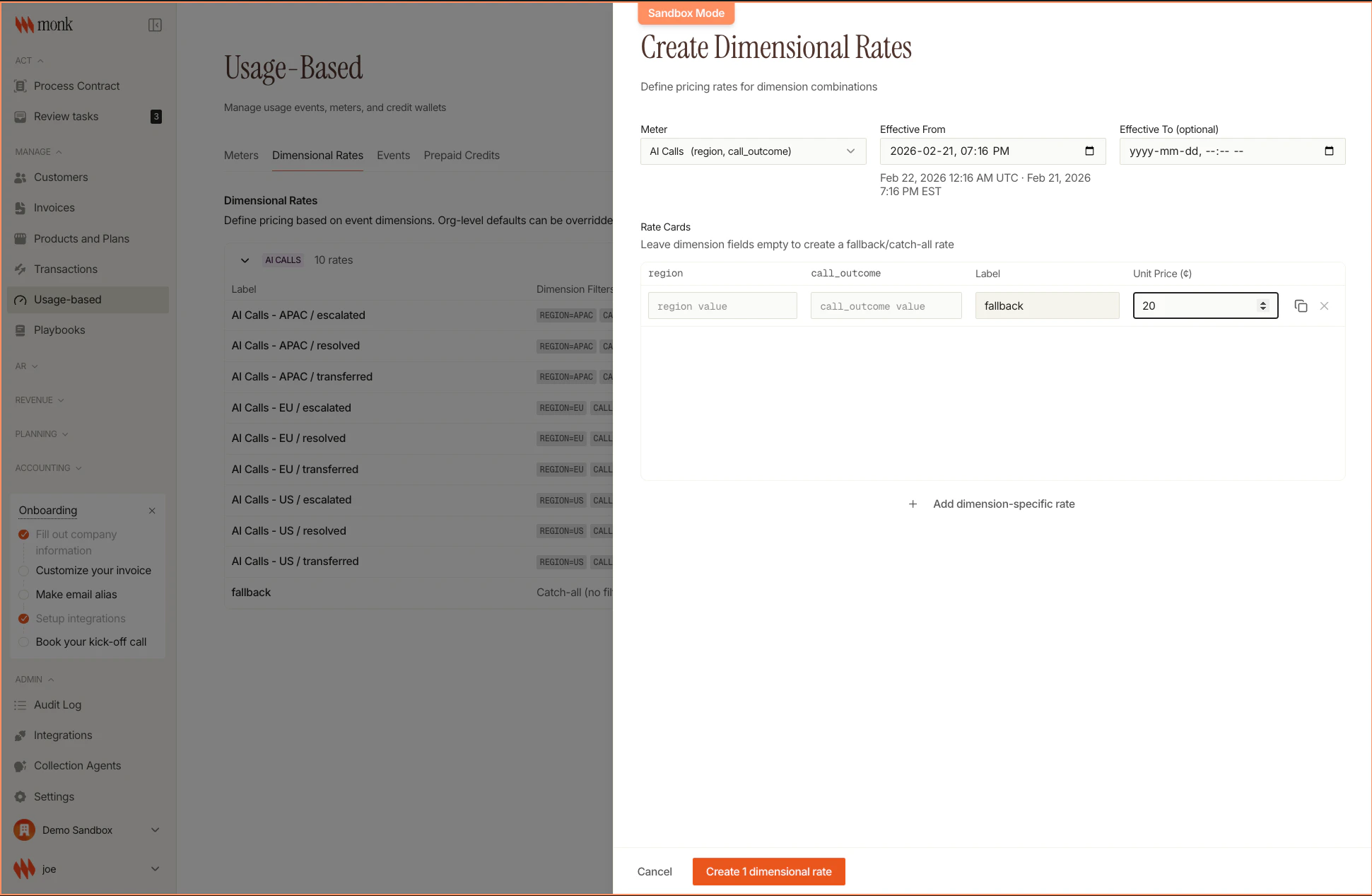
| Strategy | Fallback Rate | When to Use |
|---|---|---|
| Conservative | Highest rate | New dimensions should be profitable |
| Break-even | Average rate | Cover costs on unknown combinations |
| Customer-first | Lowest rate | Favor customers, fix rate card quickly |
Coming soon: Editing rates in the UI will be available shortly, allowing
you to tweak existing rates or add new dimension combinations. Versioning is
supported through the Effective From and Effective To dates — Monk
tracks rate history and aggregates usage against the correct rate version
based on when events occurred.
Troubleshooting
All Events at Fallback Rate
Problem: Events aren’t matching rate card entries. Check:- Property names match exactly (case-sensitive)
- Property values match exactly (
USnotus) - Rate card is attached to the pricing
Missing Dimension Properties
Problem: Some events missing dimension properties. Solution: Validate before sending:Unexpected Dimension Values
Problem: New region or outcome not in rate card. Solution: Events use the fallback rate until you update the rate card. Monitor for unexpected values and update accordingly.Summary
You’ve built a complete AI billing system with:- ✅ Dimensional meter tracking calls by region and outcome
- ✅ Rate card with specific prices per combination
- ✅ Pricing with fallback for unknown combinations
- ✅ Plan bundling the dimensional pricing
- ✅ Contract generating invoices with dimensional breakdowns
- ✅ Usage events with dimension properties
- ✅ Invoices showing transparent per-dimension charges
Next Steps
Dimensional Pricing Concepts
Deep dive into dimensional pricing design
Events API
Full API reference for usage events
Set Up Auto-Pay
Automatic payment collection
Testing Your Integration
Validate your billing setup