
Documentation Index
Fetch the complete documentation index at: https://docs.monk.com/llms.txt
Use this file to discover all available pages before exploring further.
Set Up Dimensional Pricing
This guide walks you through implementing dimensional pricing for an AI call center that charges different rates based on region and call outcome.What is dimensional pricing? Charge different rates for the same meter
based on event properties like region, tier, or outcome. Learn more
→
Prerequisites
What We’re Building
An AI call center product with rates that vary by:| Dimension | Values |
|---|---|
| Region | US, EU, APAC |
| Call Outcome | resolved, transferred, escalated |
- US resolved calls: $2.00
- EU escalated calls: $7.50
- Fallback (unknown combinations): $4.00
Step 1: Create a Meter with Dimensions
First, create a meter that tracks AI calls and groups by dimension keys.Navigate to Meters
- Open your Monk dashboard
- Go to Usage-based → Meters
- Click Create Meter
Configure the Meter
| Field | Value |
|---|---|
| Code | AI_CALL |
| Display Name | AI Calls |
| Event Name | ai_call |
| Aggregation | Sum |
| Aggregation Key | duration_minutes |
| Group Keys | region, call_outcome |
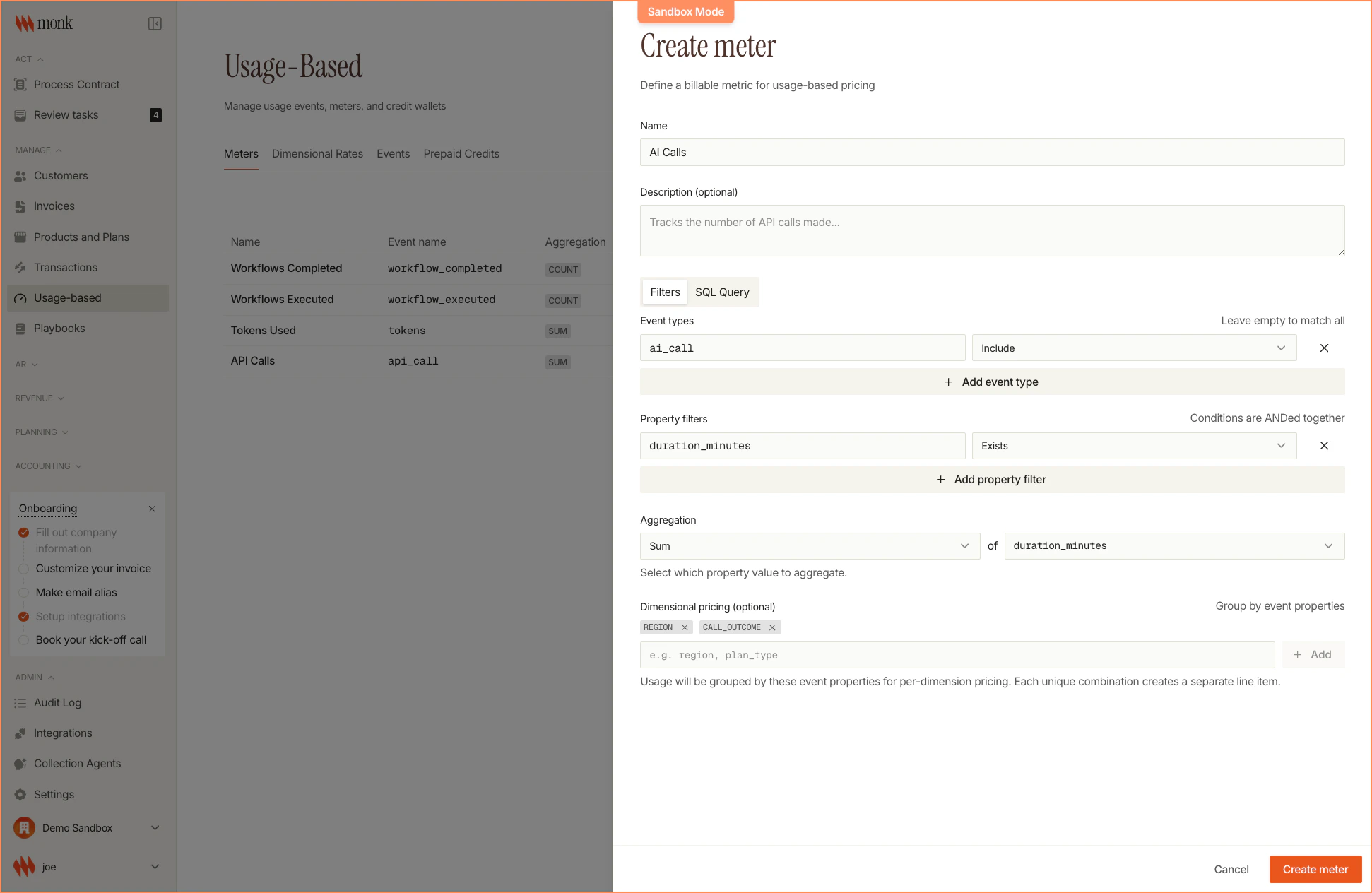
Group Keys define which event properties Monk uses to break down usage.
These must match the property names in your events exactly.
Save the Meter
Click Save. Your meter is now ready to receive events with dimension properties.Step 2: Create a Rate Card
Rate cards define prices for specific dimension combinations.Navigate to Dimensional Rates
- Go to Usage-based → Dimensional Rates
- Click Create dimensional rate
Select the Meter
Choose AI Calls as the meter this rate card applies to.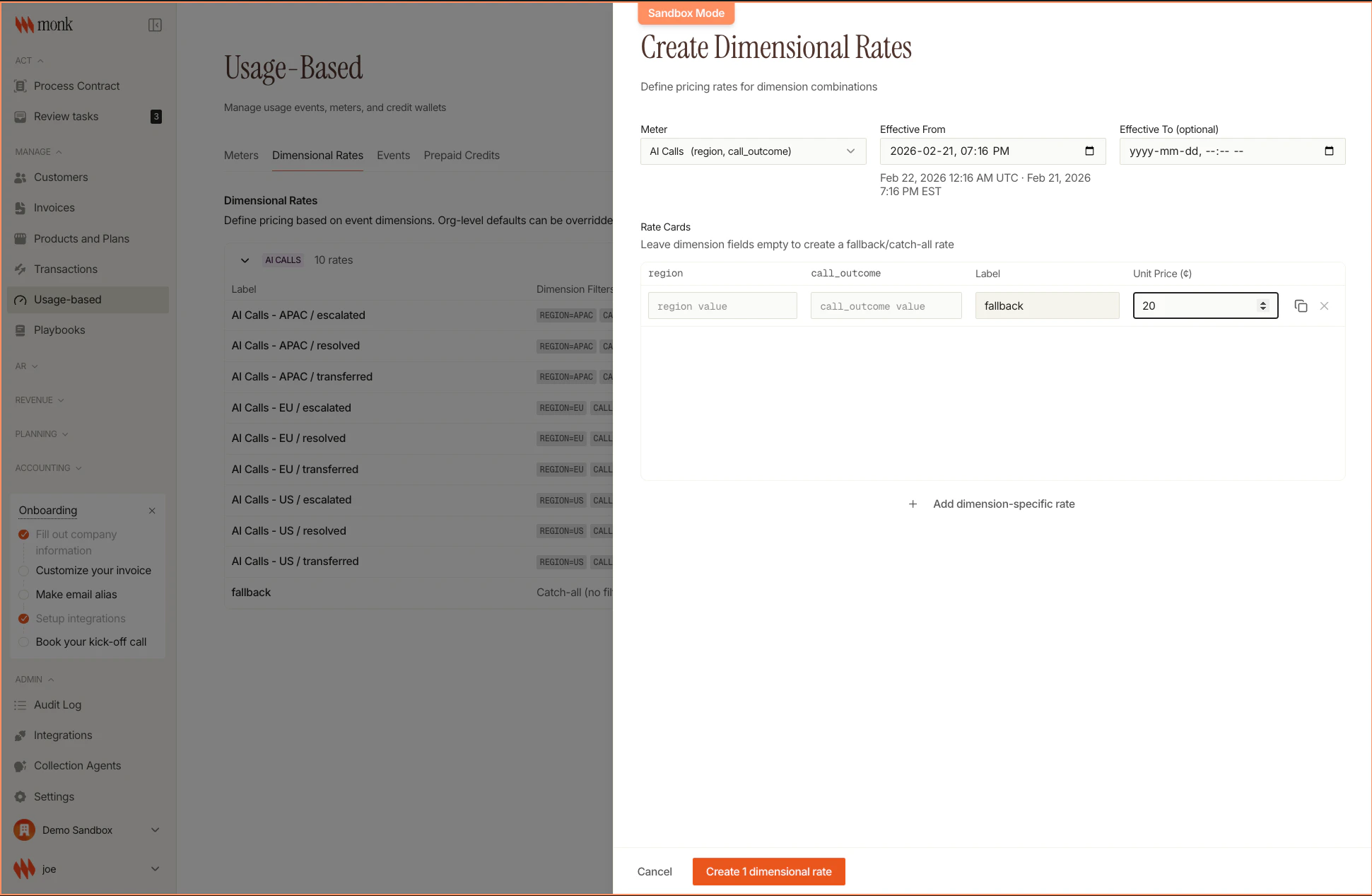
Add Rate Entries
Add entries for each dimension combination you want to price specifically:| Region | Outcome | Rate |
|---|---|---|
| US | resolved | $2.00 |
| US | transferred | $4.00 |
| US | escalated | $6.00 |
| EU | resolved | $2.50 |
| EU | transferred | $5.00 |
| EU | escalated | $7.50 |
| APAC | resolved | $3.00 |
| APAC | transferred | $6.00 |
| APAC | escalated | $9.00 |
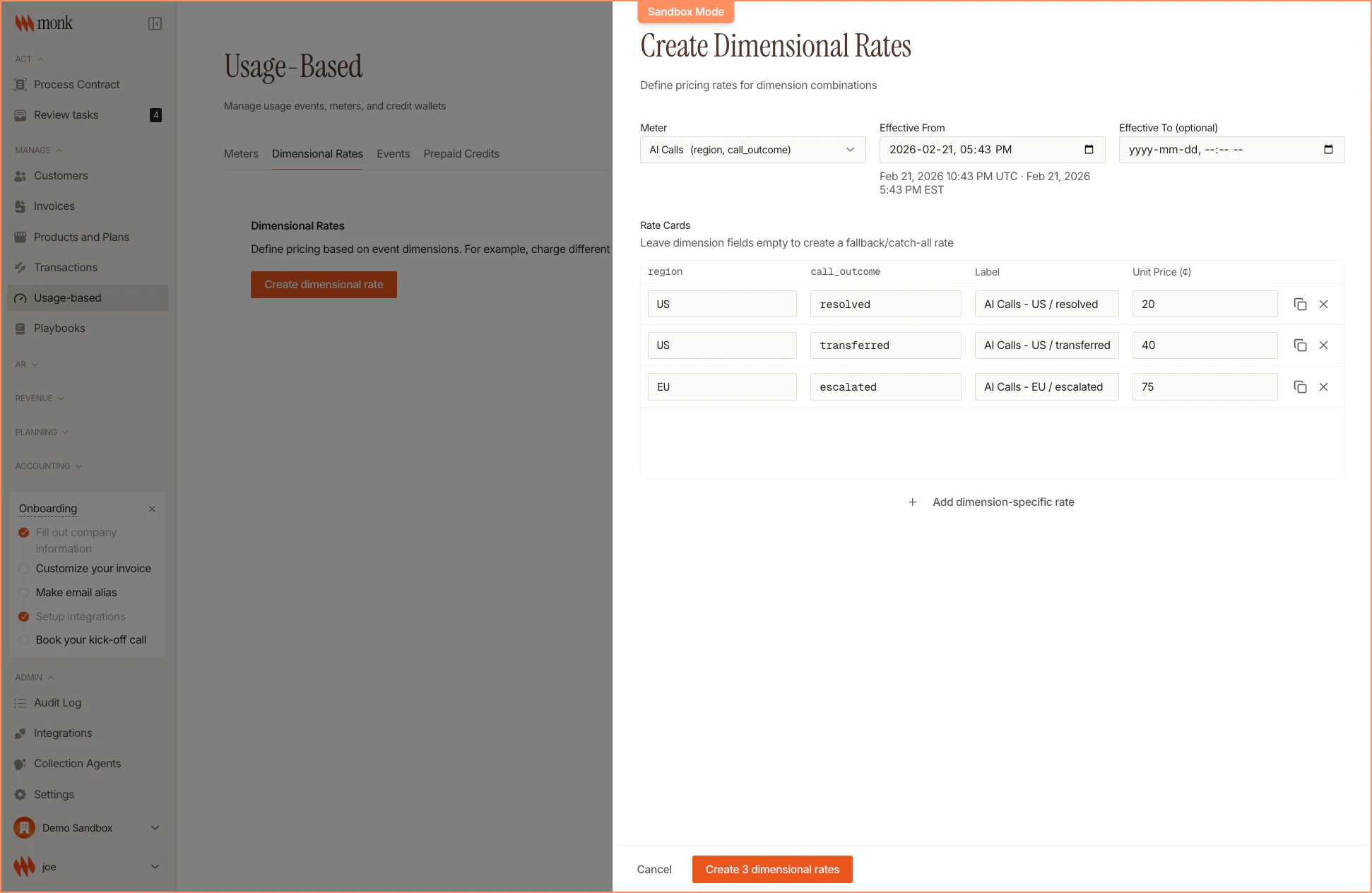
Save the Rate Card
Click Save. The rate card is now available to use in pricing.Step 3: Create Pricing with the Rate Card
Now create a pricing configuration that uses your rate card.Navigate to Pricing
- Go to Products and Plans
- Click Create Product (or edit an existing product)
- Add a Usage-based pricing
Configure Pricing
| Field | Value |
|---|---|
| Name | AI Call Pricing |
| Meter | AI Calls |
| Pricing Model | Per Unit |
| Fallback Rate | $4.00 |
| Rate Card | (select your rate card) |
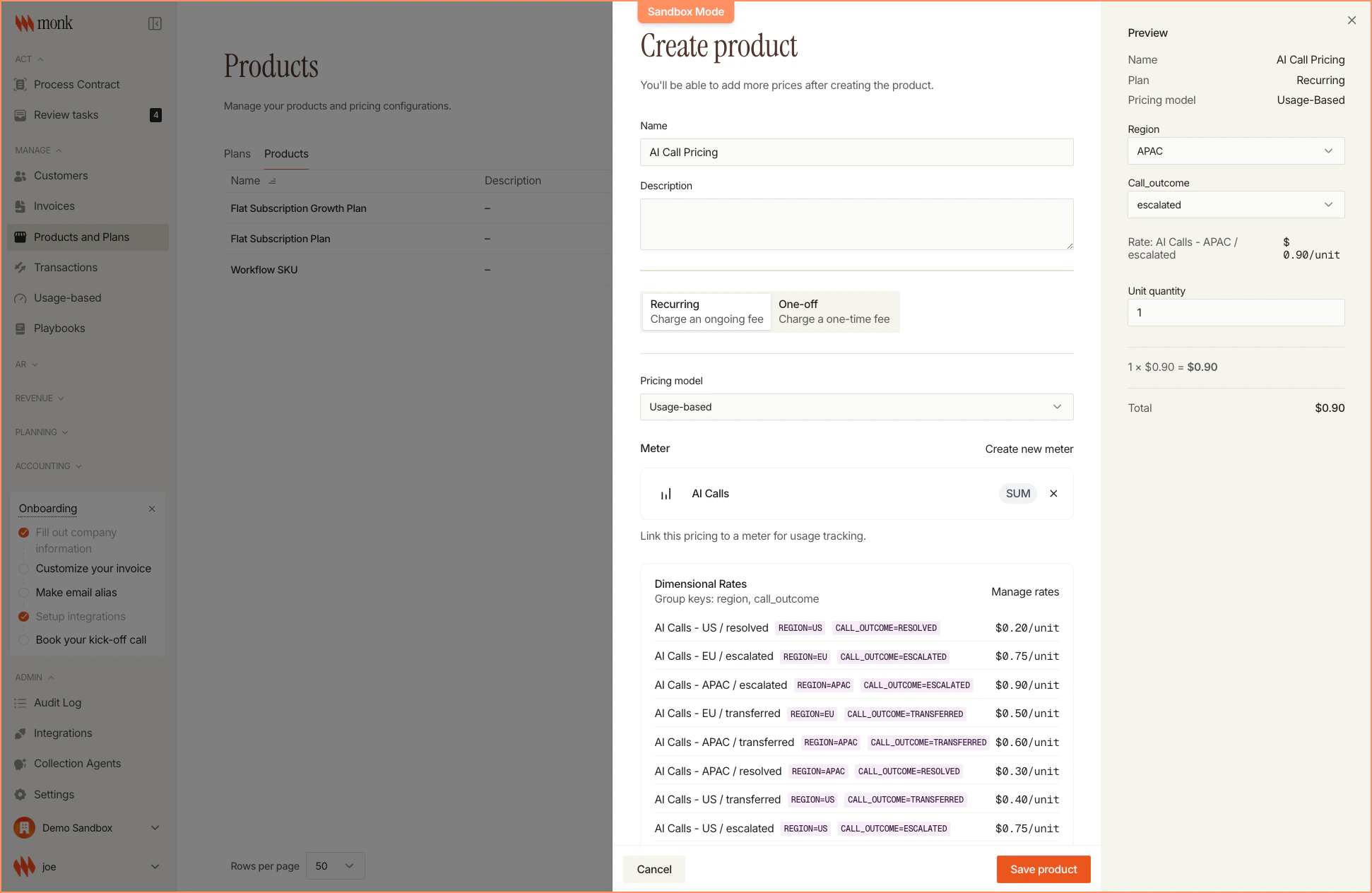
Save the Pricing
Click Save. Your dimensional pricing is now ready to add to a plan.Step 4: Add to a Plan
Add the pricing to a plan to make it available for contracts.Navigate to Plans
- Go to Products and Plans
- Select an existing plan or click Create Plan
- Click Add Pricing Item
Add the Pricing
- Select Usage-Based
- Choose AI Call Pricing
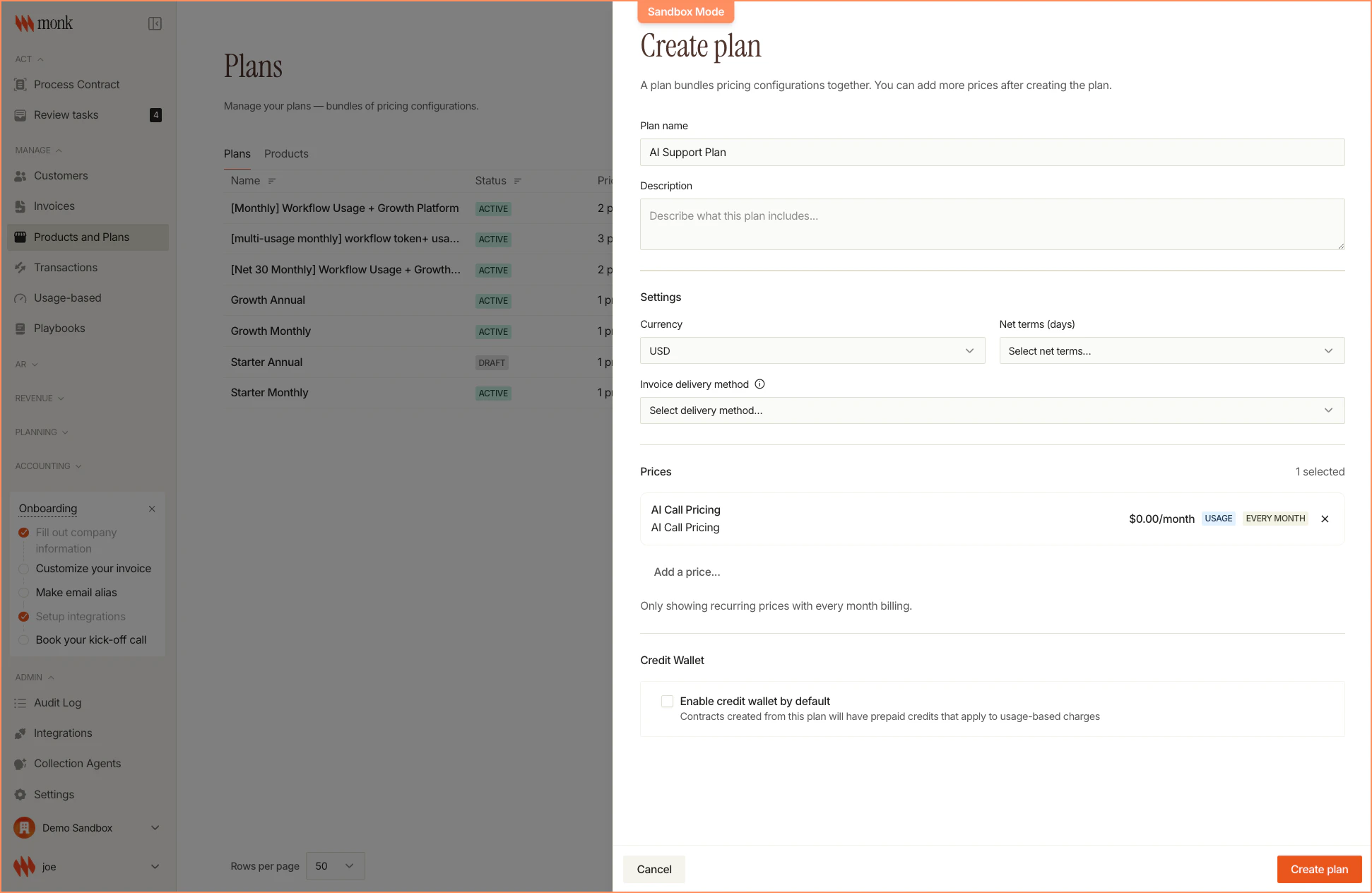
Save the Plan
Click Save. Customers on this plan will now be billed with dimensional rates.Step 5: Send Events with Dimensions
Your application sends events with the dimension properties:Property names must match exactly — If your rate card expects
call_outcome but you send callOutcome, the event won’t match and will use
the fallback rate.Batch Events
For high-volume scenarios, use the batch endpoint:Step 6: View Invoice Breakdown
When the billing period ends, the invoice shows each dimension combination as a separate line item: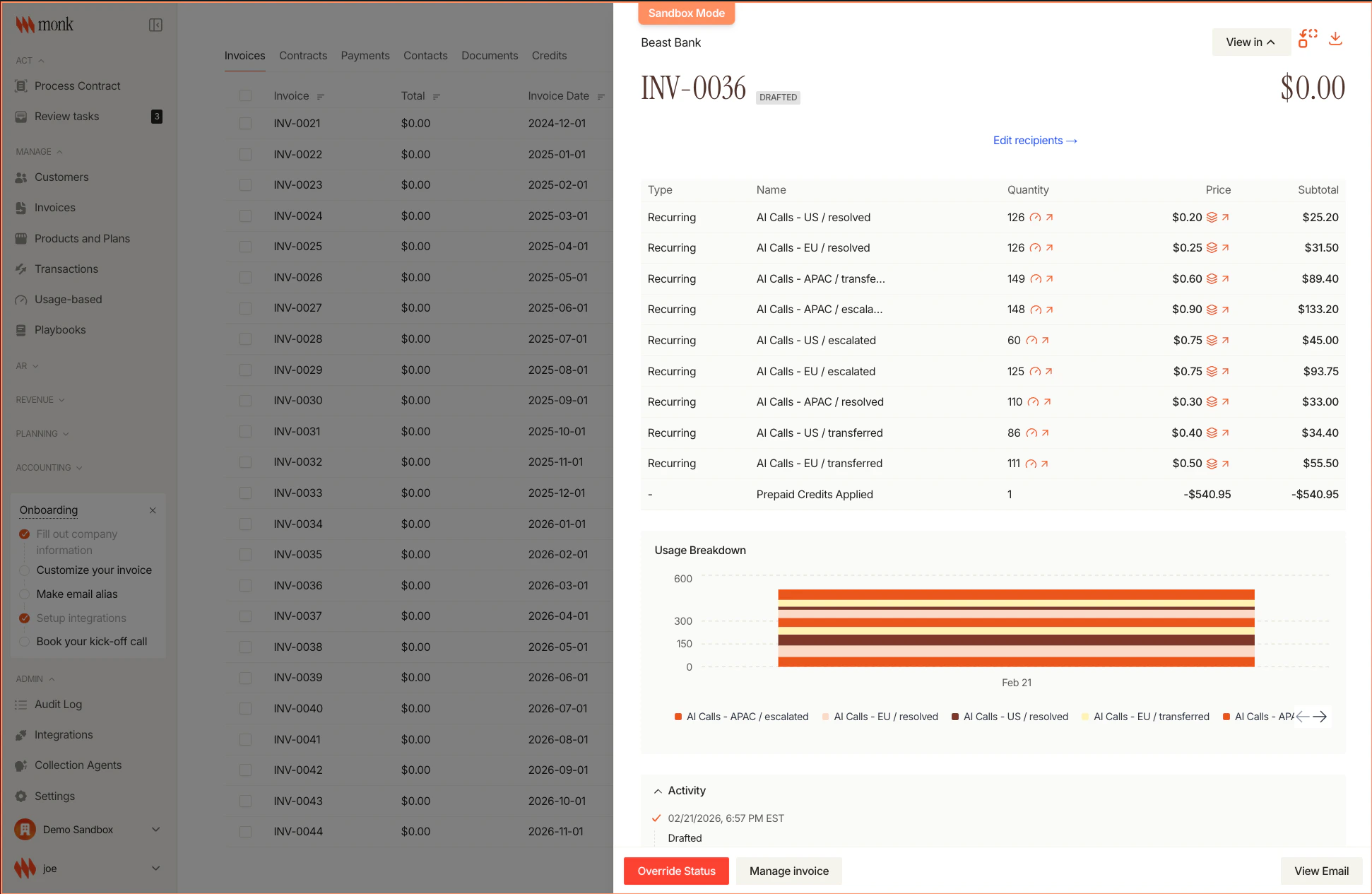
| Line Item | Qty | Rate | Amount |
|---|---|---|---|
| AI Calls - US / Resolved | 60 | $2.00 | $120.00 |
| AI Calls - US / Transferred | 30 | $4.00 | $120.00 |
| AI Calls - US / Escalated | 10 | $6.00 | $60.00 |
| AI Calls - EU / Resolved | 50 | $2.50 | $125.00 |
| Total | $425.00 |
Troubleshooting
Events Not Matching Rate Card
Symptom: All events are billed at the fallback rate. Check:- Property names match exactly (case-sensitive)
- Property values match exactly (
USvsus) - The rate card is attached to the pricing
Missing Dimension Properties
Symptom: Events without dimension properties use fallback rate. Solution: Ensure your application always sends the required properties:Too Many Line Items
Symptom: Invoice has dozens of line items. Solution: Reduce the number of dimensions or consolidate dimension values:- Combine low-volume dimension values (e.g.,
APACinstead ofJP,KR,AU) - Use fewer dimensions (1-2 is usually sufficient)
Next Steps
Dimensional Pricing Concepts
Design patterns and best practices
Events API
Send events with dimension properties
Create a Contract
Subscribe customers with dimensional pricing
Tiered Pricing
Combine dimensions with volume tiers